 Online Portal
 Accessibility
 English
Accessibility
On this page, you will find an accessibility icon located on the right side of the screen. That button opens the UserWay accessibility menu, a free tool that allows you to adjust the website’s display to suit your needs.
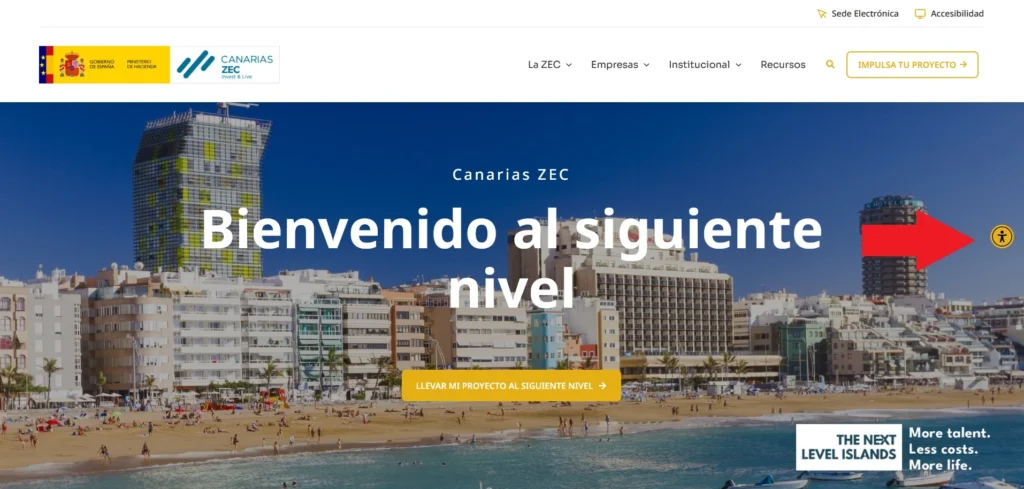
How do I open the menu?
Click or tap the accessibility icon floating on the screen. A side panel will open with all the available options.What can you adjust?
Contrast
Increase the contrast between the text and the background to improve readability. You can enable high-contrast mode or even dark mode, which is especially useful if you are sensitive to light.
Text size
Use the buttons to increase or decrease the font size for more comfortable reading, without needing to zoom in using your browser.
Dyslexia-friendly font
Enables the dyslexia-friendly font, designed to make reading easier for people with reading comprehension difficulties.
Large cursor
Increases the size of the mouse cursor to make it easier to see on the screen.
Highlight links
Enable this option to visually mark all links on the page, making them easier to identify.
Pause animations
If there are animated elements on the website that you find annoying or distracting, you can stop them with this option.
Text spacing
Increases the space between lines and letters for more comfortable reading.
Screen Reader
Enable this feature to make the page content compatible with screen readers for visually impaired users.
How do I disable an option?
Each setting acts as a switch. If it is already enabled, click it again to disable it and return to the original view.Are the changes saved?
Yes. The widget saves your preferences in your browser using cookies, so the same settings will be automatically applied the next time you visit the website.Do you have any questions or problems?
If the accessibility menu is not working correctly for you or you need additional help, please do not hesitate to contact us using the form.
This website uses the UserWay Accessibility Widget plugin to ensure an inclusive browsing experience for all users.